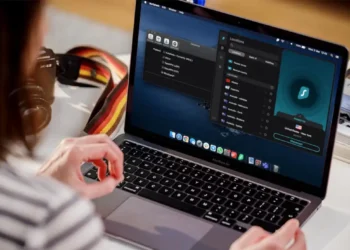



We all want to stay secure online, especially in a world where privacy can feel like a rare commodity.
That’s where Virtual Private Networks (VPNs) come in. They’re your digital bodyguard, protecting your personal data and online activities from prying eyes. But let’s face it—setting up a VPN manually can seem intimidating.
Don’t worry, though. This guide is here to walk you through the process. Whether you’re using Windows, macOS, Android, iOS, or want to protect every device on your home network through your router, I’ve got you covered. Let’s make VPN configuration as easy and approachable as possible.
Why Set Up a VPN?
Before diving in, let’s answer the big question: why bother setting up a VPN? A VPN doesn’t just keep your data safe; it also opens the door to a more secure and private internet experience. Whether you’re protecting your browsing on public Wi-Fi or accessing region-restricted content, a VPN is a must-have tool.
Plus, if you’re serious about optimizing your online presence, using AI to improve your website’s content structure can complement the security a VPN provides.
Setting Up a VPN on Windows
If you’re using Windows, good news: it’s one of the easiest platforms for VPN setup.
- Download and Install: Grab a trusted VPN app from the Microsoft Store or your provider’s website.
- Go to Settings: Head to
Settings->Network & Internet->VPN. - Add a VPN Connection: Click
Add a VPN connectionand enter details like the server address and login credentials provided by your VPN service. - Connect: Select your new VPN connection from the settings menu and click
Connect.
Windows makes it simple to stay secure while you focus on other things, like optimizing your content for better SEO rankings.
How to Configure a VPN on macOS?
Mac users, you’re not left out. Setting up a VPN manually on macOS is just as straightforward.
- Install a VPN App: Download it from the App Store or directly from your provider’s website.
- Open System Preferences: Go to
System Preferences->Network. - Add a VPN Connection: Hit the
+button, selectVPN, and input the necessary details like server address and type. - Connect: Apply the settings and hit
Connectto start browsing securely.
For Mac enthusiasts who juggle personal and professional use, exploring how AI tools can improve your blog content strategy can be a game-changer.
VPN Setup on Android
Android makes it easy to secure your mobile browsing with a VPN.
- Download a VPN App: Get one from the Google Play Store for a quick setup.
- Manual Configuration: Alternatively, go to
Settings->Network & Internet->VPN, tapAdd VPN, and fill in the details like the server address and credentials. - Connect: Save the configuration, select your VPN profile, and connect.
Once your Android is secure, why not learn how AI can help you identify content that needs updating? It’s another way to stay ahead in today’s fast-paced digital world.
Manual VPN Configuration on iOS
For iPhone and iPad users, VPN setup is just as simple as on Android.
- Install a VPN App: Download from the App Store to get started quickly.
- Manual Setup: Go to
Settings->General->VPN & Device Management->Add VPN Configuration. Enter details like server address and type. - Connect: After setup, toggle the VPN switch in your settings to activate it.
Enhance your mobile experience by discovering how AI can improve your content’s conversion rate.
VPN Configuration on Routers
Securing your entire network? Setting up a VPN on your router might be the best move.
- Access Your Router: Log in to your router’s admin panel through its IP address.
- Navigate to VPN Settings: Find the
VPN Clientoption in the settings. - Input VPN Details: Provide the server address and credentials, or upload an OpenVPN file if your provider offers one.
- Activate: Apply the settings and enjoy secure browsing across all connected devices.
This setup pairs perfectly with tools that help enhance user experience on your website.
Final Thoughts
Setting up a VPN doesn’t have to feel like rocket science. With the right steps, you can protect your privacy and secure your online activities in no time. Whether you’re configuring a single device or your entire home network, you’re taking a vital step toward a safer digital experience.
And don’t stop there. Pair your new secure browsing habits with strategies like using AI to curate industry-specific content to maximize your online presence and efficiency.
Happy browsing—safely, securely, and with peace of mind!