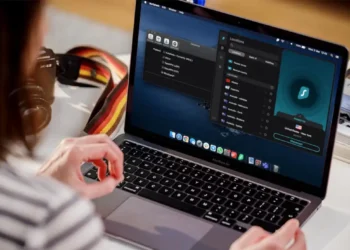



If you’re a macOS user who values your privacy (and let’s be real, who doesn’t these days?), setting up a Virtual Private Network (VPN) is one of the smartest moves you can make.
Think of a VPN as your online superhero, cloaking your internet activity from prying eyes while giving you access to the global web without restrictions. This guide will help you navigate the steps to install and configure a VPN on your Mac. Plus, I’ll sprinkle in some handy tips to make sure your connection stays secure, fast, and frustration-free.
Why a VPN Is Your Best Friend on macOS?
Using a VPN on your Mac isn’t just a good idea—it’s a game-changer. Here’s why:
- Enhanced Security: A VPN encrypts your internet connection, making it virtually impossible for hackers to steal your data. This is especially crucial if you use public Wi-Fi at cafes, airports, or coworking spaces.
- Anonymity: It hides your IP address, so websites and trackers won’t know where you’re from or what you’re up to online.
- Access Everywhere: Want to binge shows that are only available in another country? A VPN makes geo-restricted content a thing of the past.
Curious about other ways a VPN boosts your online security? Check out VPN Security Benefits: Your Digital Guardian in the Online World.
How to Choose the Right VPN for macOS?
Before diving into setup, you need the right VPN. Here’s what to look for:
- Privacy Matters: Pick a provider with a strict no-logs policy, meaning they won’t store any data about your browsing habits.
- Speed Counts: High-speed servers are a must for seamless streaming or video calls.
- Ease of Use: Look for apps designed with macOS users in mind—no one likes clunky software.
- Global Servers: The more server locations, the better. It gives you flexibility for accessing content worldwide.
Not sure where to start? Check out Which VPN Works for Mac: Top 3 for macOS for some great recommendations.
Step-by-Step Guide: Setting Up a VPN on macOS
Ready to protect your Mac? Follow these simple steps:
1. Download and Install the VPN App
Head to your chosen VPN provider’s website or the Mac App Store, download the app, and drag it into your Applications folder. Boom, installation done!
2. Log In and Configure
Open the app and sign in with your account details. Most modern VPN apps come pre-configured, but if you’re feeling tech-savvy, you can manually set it up. Input the server address and authentication details from your VPN provider.
Need more in-depth configuration tips? We’ve got you covered with our Guide to Setting Up a VPN for Maximum Privacy.
3. Connect to a Server
Choose a server location and hit “Connect.” Want to watch Netflix from another country or access region-specific websites? Pick a server in that country.
Testing Your VPN: Is It Working?
Here’s how to ensure your VPN is doing its job:
- Check Your IP Address: Use an online IP checker to confirm that your displayed IP matches the VPN server’s, not your actual location.
- Test Connection Speed: Some speed loss is normal with a VPN, but if it’s super slow, try switching servers or tweaking your settings.
For tips on improving your VPN performance, read Enhancing VPN Performance for Remote Workers.
Troubleshooting Common VPN Issues
Even the best VPNs can have hiccups. Here’s how to solve them:
- Slow Speeds? Choose a closer server or switch to a faster protocol like WireGuard.
- Connection Drops? Enable your VPN’s kill switch to protect your data during interruptions.
- DNS Leaks? Make sure your VPN’s DNS servers are properly configured to avoid leaks.
Keep Your VPN Running Smoothly
To ensure your VPN remains a reliable part of your digital toolkit, follow these tips:
- Update Regularly: Updates fix bugs and improve security.
- Review Your Settings: Adjust your VPN configurations based on your current browsing habits.
- Run Periodic Tests: Check your connection and IP address occasionally to make sure the VPN is functioning as expected.
Ready to Unlock the Web?
By setting up a VPN on your macOS, you’re not just protecting your data—you’re opening the door to a safer, freer internet. Whether you’re securing sensitive information or streaming your favorite shows from halfway around the world, a VPN is your ticket to peace of mind.
Need more guidance? Explore our Step-by-Step Guide to Setting Up a VPN and dive deeper into making the most of this essential tool.